Two Claude accounts on one Windows PC
The Claude desktop app runs one account at a time. Here's how to run a second one beside it on Windows, using Claude's new Linux app inside WSL.
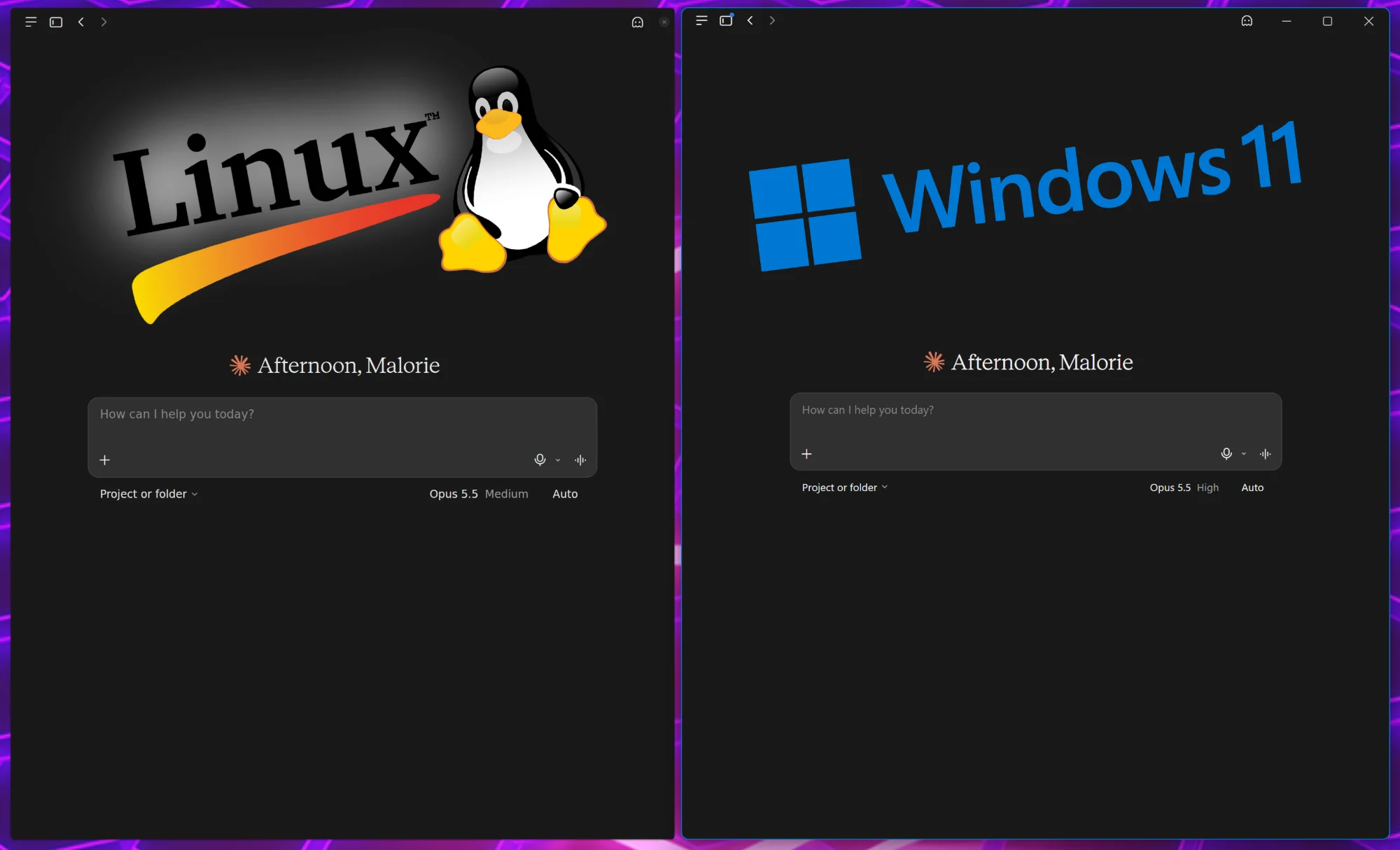
Plenty of users end up with two Claude subscriptions—one for their own books and one for a business, a co-writer or a client. The catch is the desktop app: it runs one account at a time on a computer. You can keep the second account in a browser tab, but the browser can’t do everything the app can—working with the files on your computer, for one.
There’s a neater way for Windows users! In July, Anthropic released a Linux version of the Claude app (it’s still in beta), and Windows can run Linux apps in their own windows through WSL, the Windows Subsystem for Linux. So your second account gets its own real Claude app, in its own window, next to the first.
It takes about half an hour. You’ll paste a handful of commands into a terminal; each one is below, with what it does.
Before you start
- Windows 11, up to date.
- A paid Claude plan on the second account.
- Hardware virtualization turned on in your PC’s firmware settings. Most PCs ship with it on. If the checks in step 2 fail, this is usually why and your AI can help you sort it out.
The Linux app has Chat, Cowork and Claude Code, just like the Windows one. Two things aren’t in the Linux beta yet: Claude controlling apps on your screen, and voice dictation.
1. Install Ubuntu in WSL
Open PowerShell from the Start menu and run:
wsl --install
This installs WSL with Ubuntu, which is conveniently Anthropic’s supported version of Linux for the app.
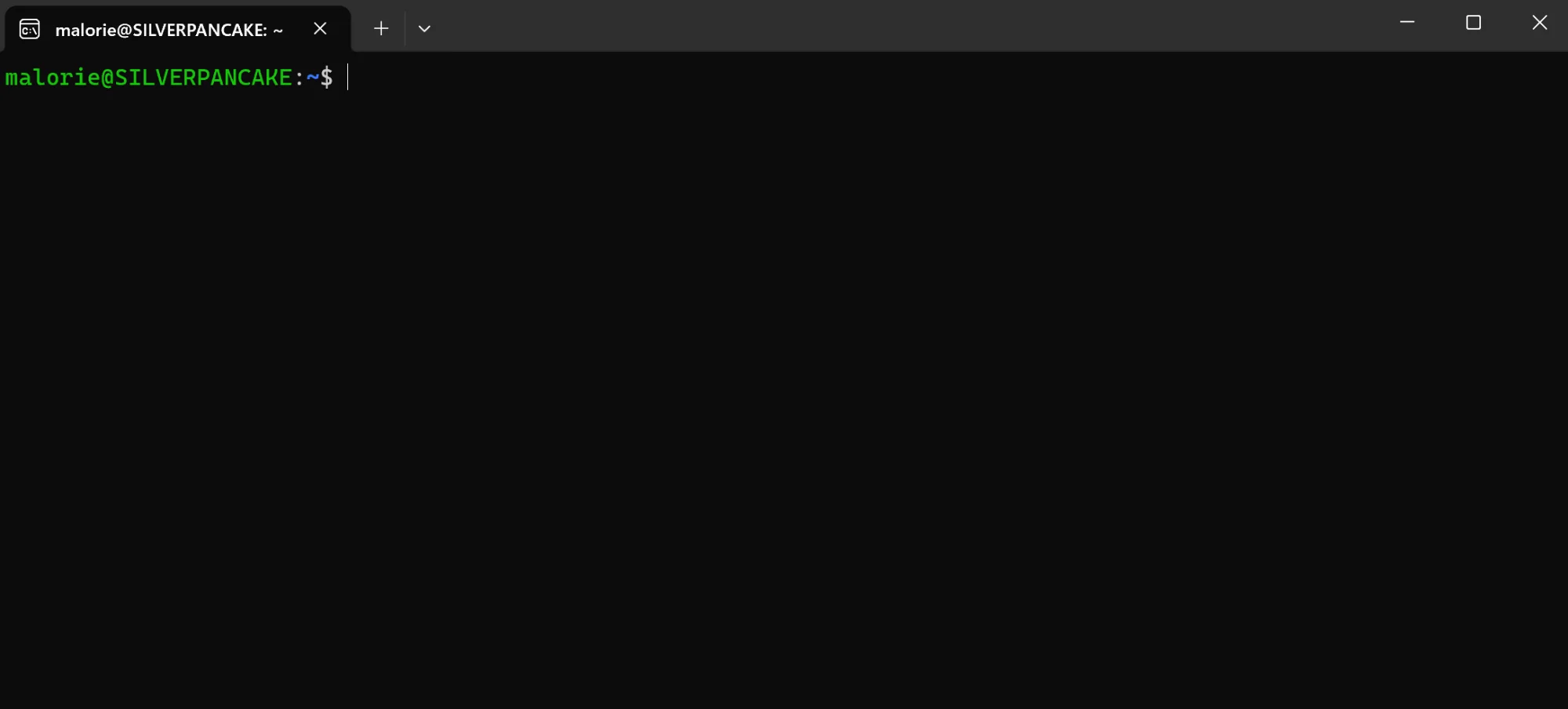 Restart when it asks, then open Ubuntu from the Start menu (type it in if it isn’t there) and choose a username and password for it. That password is the one Linux asks for whenever a command starts with
 sudo (which is short for super-user-do). When it’s done, you’ll be at a window that looks like this.
If you already have WSL, update it instead: run wsl --update in PowerShell.
2. Check that Cowork will run
Cowork runs its work inside a small virtual machine of its own, so Linux needs access to your PC’s virtualization. In Ubuntu, add yourself to the group that’s allowed to use it:
sudo usermod -aG kvm $USER
(If successful, this command will have no output)
Then restart WSL so the change takes effect. In PowerShell, run wsl --shutdown, wait a few seconds, and open Ubuntu again. Now check:
ls -l /dev/kvm
groups
ls -l /dev/vhost-vsock
The first and third should list a file each, and groups should include kvm. If any of them fails, Chat and Claude Code will still work; only Cowork won’t. Ask your AI to help you debug any failures.
3. Install the Claude app
The app comes from Anthropic’s own package repository, so you add that first. In Ubuntu:
sudo apt install curl gnupg
sudo curl -fsSLo /usr/share/keyrings/claude-desktop-archive-keyring.asc https://downloads.claude.ai/claude-desktop/key.asc
echo "deb [arch=amd64,arm64 signed-by=/usr/share/keyrings/claude-desktop-archive-keyring.asc] https://downloads.claude.ai/claude-desktop/apt/stable stable main" | sudo tee /etc/apt/sources.list.d/claude-desktop.list
sudo apt update && sudo apt install claude-desktop
Updates arrive the same way as the rest of Ubuntu’s: sudo apt update && sudo apt upgrade.
4. Sign in with an email code
If you normally sign in with Google, don’t use the Google button here. It needs a browser that Ubuntu doesn’t have yet, and if you send it to your Windows browser instead, it signs in your other account.
Choose Continue with email and enter the address you use with Claude—the same Gmail address works. Open the email on Windows and click the link. Because you’re not in the app, the page shows a code instead; type it into the app, and you’re in.
5. Make it look sharp
Out of the box, Windows stretches Linux apps to your display scaling, which makes the text soft. Two changes fix that.
First, tell WSL not to stretch them. In Windows, create a file called .wslgconfig (with the g) in your user folder, C:\Users\<you>\. This is where you typically land if you click start and type in cmd, then hit enter.
To make the file, type notepad .wslgconfig. Notepad will open, paste the lines below into notepad, save, and close notepad.
[system-distro-env]
WESTON_RDP_HI_DPI_SCALING=false
WESTON_RDP_FRACTIONAL_HI_DPI_SCALING=false
WESTON_RDP_DEBUG_DESKTOP_SCALING_FACTOR=100
Run wsl --shutdown in PowerShell again, wait about 5 seconds, then click start, and click the Ubuntu app, or type ubuntu and click it if it doesn’t show. Once the ubuntu terminal is up, start the app in Wayland mode, the newer Linux display system, which draws the text crisply:
claude-desktop --ozone-platform=wayland
Everything is now sharp but small. Press Ctrl + in the app until it’s comfortable; it remembers the size. (There’s a startup setting that scales the whole window instead, but in WSL it can draw only the top-left quarter of the window. Ctrl + is the reliable way.)
6. Paste screenshots
Text copies and pastes between Windows and the app as you’d expect. Pictures are another matter: WSL passes them to Linux in an old format, BMP, that the app won’t take. A one-line converter fixes that. In Ubuntu, install the tools it uses and give it a short name:
sudo apt install wl-clipboard imagemagick
echo "alias pasteimg='wl-paste --type image/bmp | convert - png:- | wl-copy --type image/png'" >> ~/.bashrc
source ~/.bashrc
Now when you want a screenshot in Claude: snip it with the Snipping Tool as usual, type pasteimg in your Ubuntu terminal, then paste into Claude.
It’s tempting to automate that step with a script that converts every picture you copy, and it can be done. But in WSL, each check of the clipboard briefly pulls the Linux windows to the front and closes any open menu, so a watcher running every second or two gets in the way more than it helps. Running pasteimg when you need it is the calmer option.
7. A browser for links
Links you click in the app need a browser inside Ubuntu, so that anything you sign into stays on this account. Google Chrome is the simplest to install:
cd /tmp
wget https://dl.google.com/linux/direct/google-chrome-stable_current_amd64.deb
sudo apt install ./google-chrome-stable_current_amd64.deb xdg-utils
xdg-settings set default-web-browser google-chrome.desktop
Run it in Wayland mode too, with google-chrome --ozone-platform=wayland. One quirk: Chrome’s first-run questions, like which profile to use, don’t appear in Wayland mode; the window just greys out. Start it once with --ozone-platform=x11 to answer them, then go back to Wayland.
8. One word to start it all
Last, a starter, so you don’t have to remember the flags. Make a folder for your own commands, then save this as ~/bin/claude-up:
mkdir -p ~/bin
cat > ~/bin/claude-up <<'EOF'
#!/bin/sh
setsid -f claude-desktop --ozone-platform=wayland >/dev/null 2>&1
EOF
chmod +x ~/bin/claude-up
Ubuntu adds ~/bin to your commands the next time you open it, so from then on, typing claude-up starts the app and hands your terminal straight back, with nothing printed. Closing the terminal won’t close the app. You can make a chrome-up the same way.
If something goes wrong
- Menus open and snap shut, or Linux windows keep jumping to the front. Something is reading the clipboard over and over, usually a leftover clipboard script. Run
wsl --shutdownin PowerShell to clear it, thenclaude-up. - Pasting stops working. WSL’s clipboard sometimes stalls after your PC sleeps. Run
wsl --shutdownin PowerShell, thenclaude-up. pasteimgprints an error instead of finishing quietly. The clipboard doesn’t hold a picture, often because something else was copied since the snip. Snip again, then run it.- The app won’t start. Run
claude-desktop --ozone-platform=waylandon its own, without thesetsidpart, to see its error.
Anthropic’s own page, Claude Desktop on Linux, covers the app itself, and it’s the place to check as the beta changes.